Creating a Virtual Machine in KeterCloud
This guide walks you through launching your first Windows VM using the KeterCloud Dashboard.
Step 1 – Create a Windows VM
First, you'll need to create a Windows VM. You can follow our normal Creating a Virtual Machine guide, but you need to keep a few things in mind while doing so:
- Select a Windows image when choosing an operating system. We recommend Windows Server 2025 Datacenter. You can also upload your own Windows image by following our guide on Uploading a Custom VM Image
- When creating a Windows VM, you'll need to select a VM Flavor with at least 4 GB of RAM and 2 CPUs
- You need to have a security group which allows Ingress TCP traffic on Port 3389 in order to access the server via RDP.
- This guide is for setting up the Evaluation Version of Windows. For full features, compliance, and to ensure functionality past the 180 day evaluation period, make sure to contact us at support@ketercloud.com once your server is ready to complete the licensing process. Note that by selecting the Windows Server 2025 Datacenter image you are already paying the monthly fee for a Windows license, you simply need to recieve the license key from us.
After you're done creating a VM with those things in mind, come back to this guide.
Step 2 - Open the Console
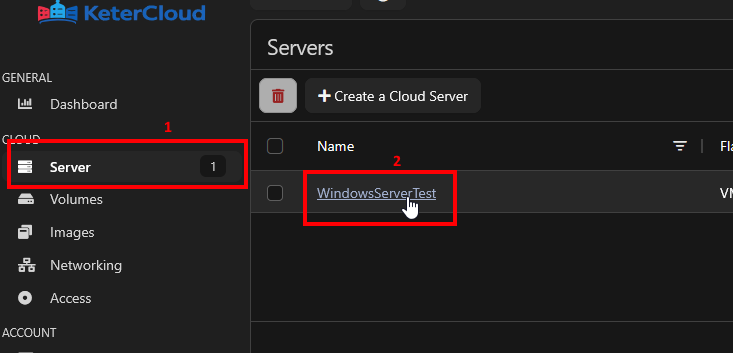
Navigate to the "Server" tab and select your server.
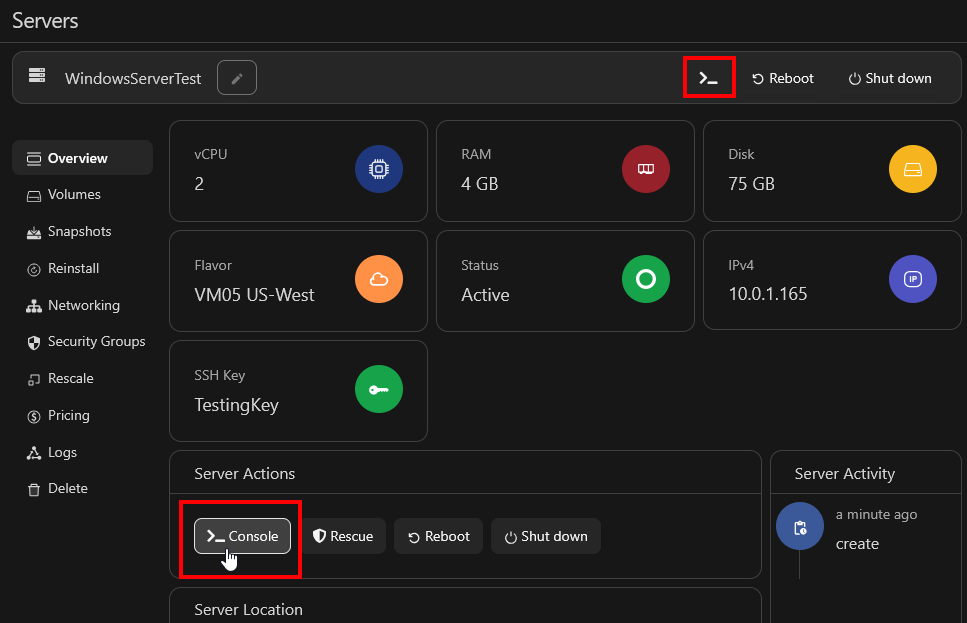
Next, click the "Console" button under Server Actions or in the top bar.
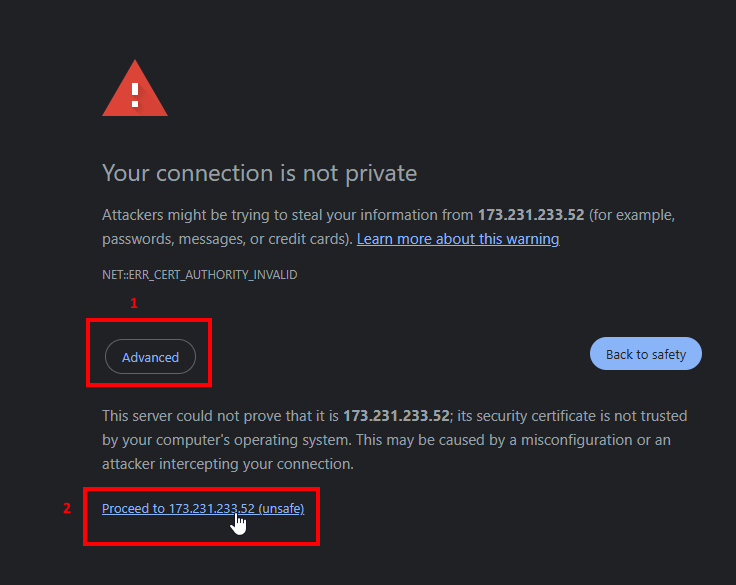
You'll be met with a warning. This is because the SSL certificate is not recognized by your computer. Click "Advanced" and then "Proceed"
Note: The connection is protected by TLS once the certificate is accepted, it's simply not recognized by default without a FQDN"
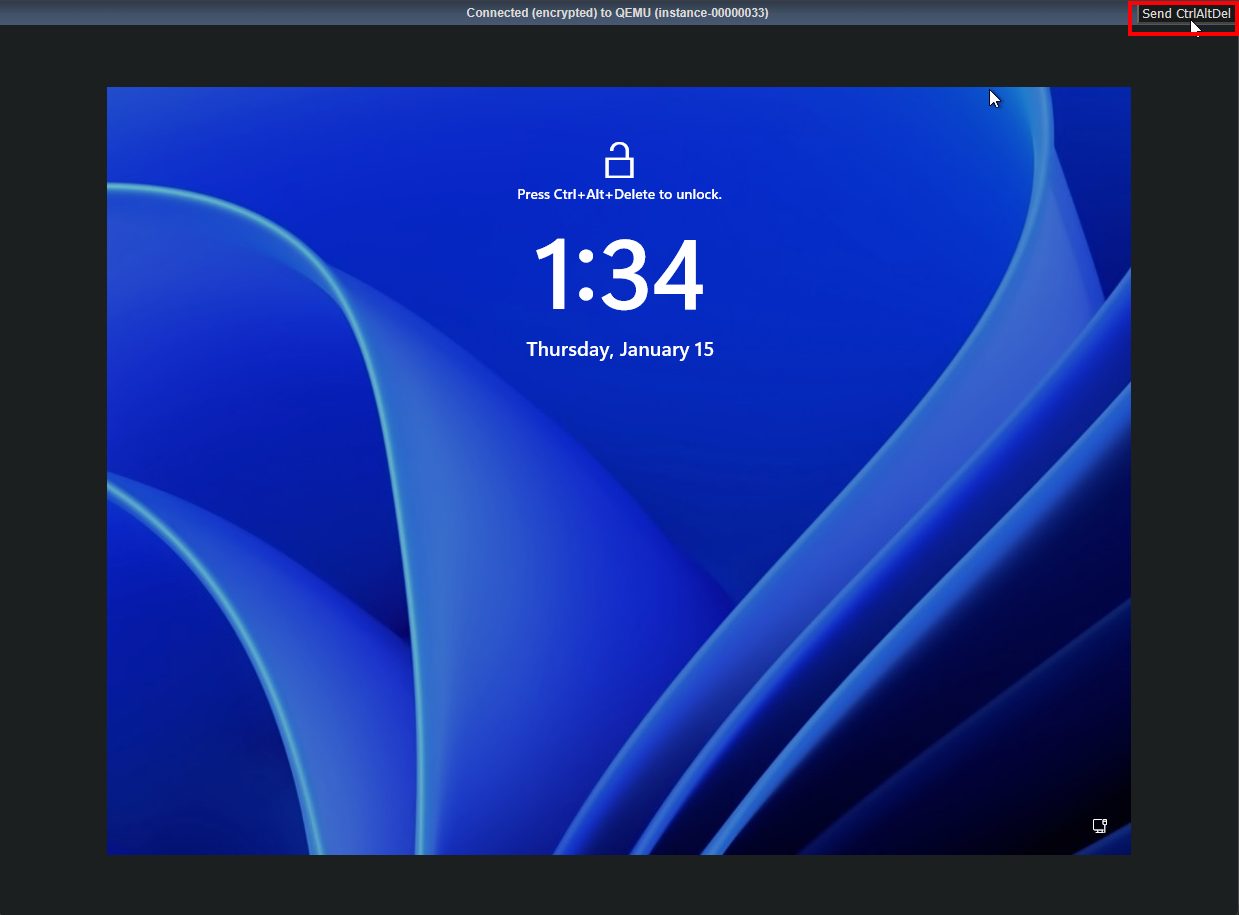
You'll be met with the first-time Windows login screen. Click "Send CtrlAltDel" in the top right corner.
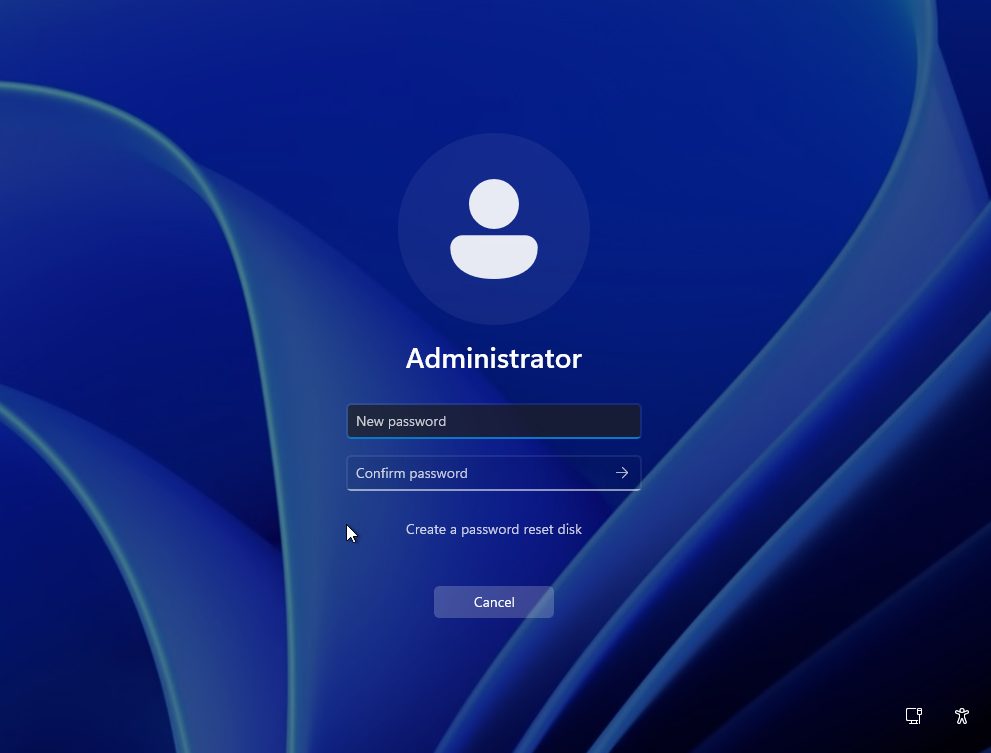
You'll be met with a prompt to set a password, then a password input screen. It's very important that you select a strong password, especially if this computer will be open to RDP connections from the internet.
Use a tool like Security.org's Password Strength Checker to come up with a secure password. Press "Enter" once you're done to continue.
You can now connect via RDP using the server's floating IP, the username "Administrator" and the password you just set.
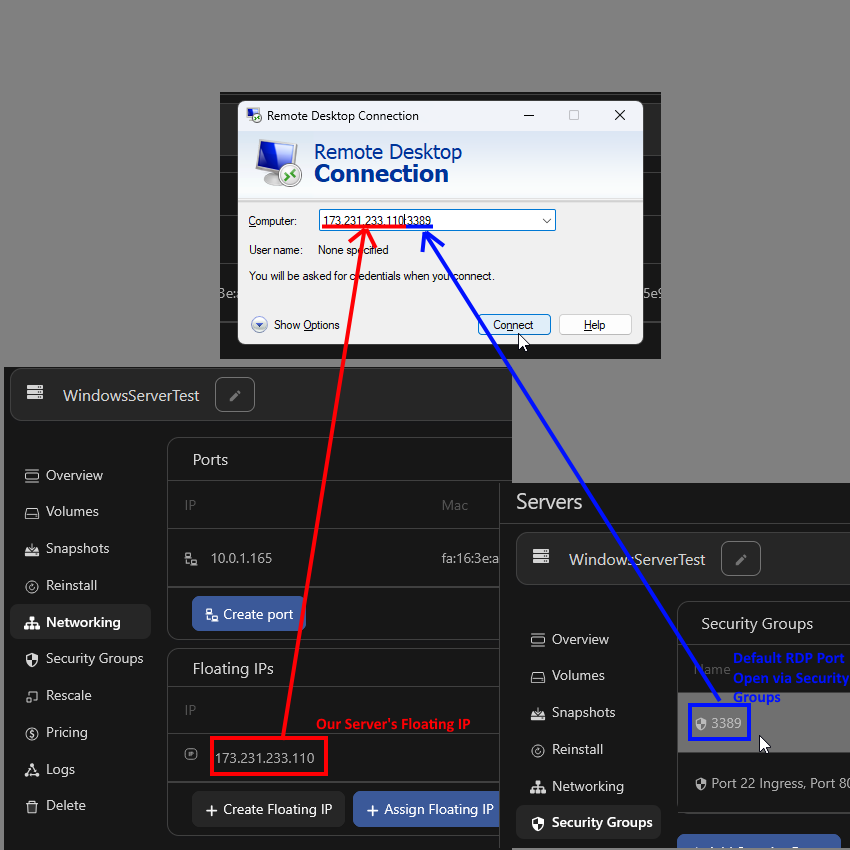
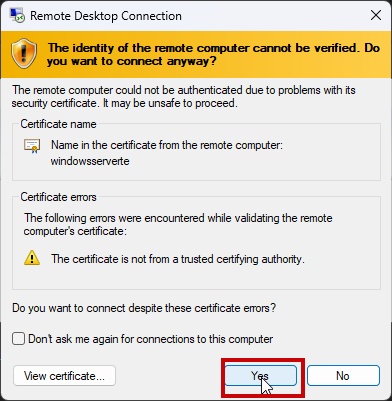
Congratulations, you now have a working Windows Datacenter 2025 VM. Make sure to contact support@ketercloud.com to complete the licensing process.