Creating a Security Group in KeterCloud
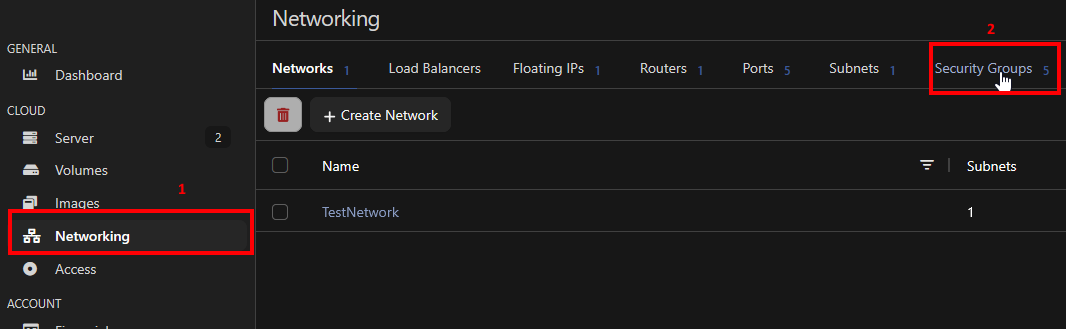
To create a Security Group, select "Networking" in the left sidebar, then click "Security Groups" in the top bar.
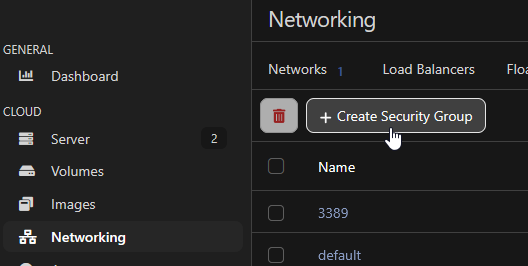
Then click "Create Security Group"
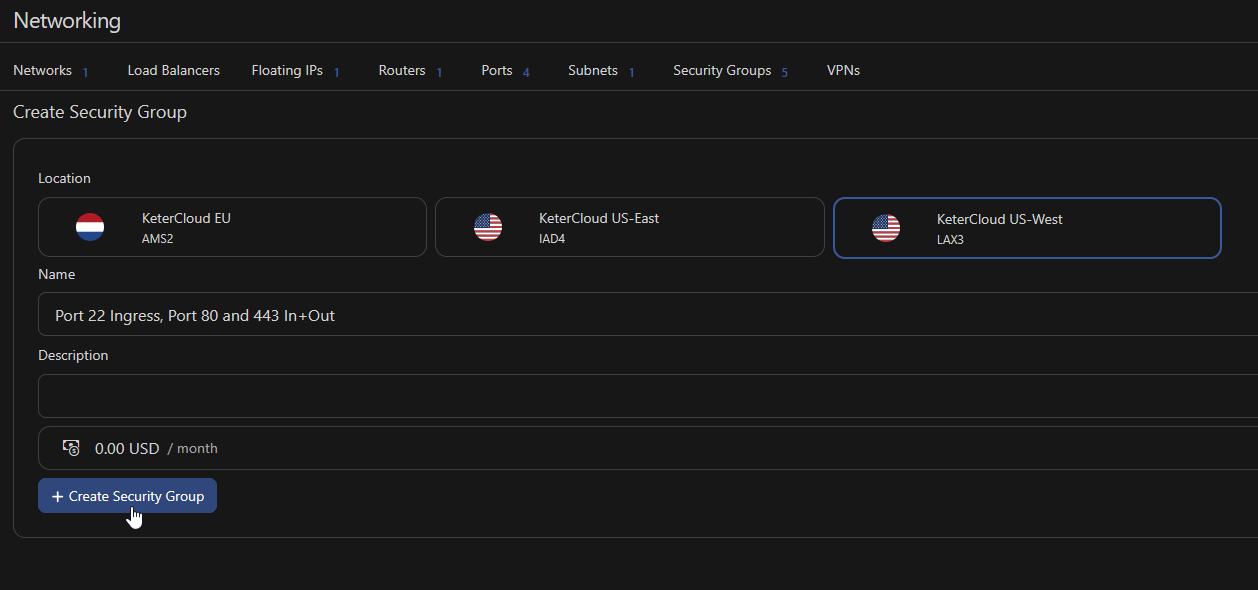
Select the same region as your server, and give the group a descriptive name. For example, I'm going to my security group "Port 22 Ingress, Port 80 and 443 In+Out"
Once you're done, click "Create Security Group"
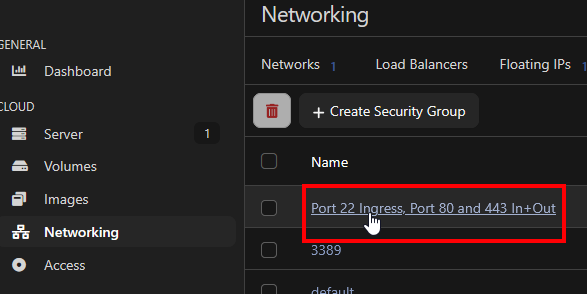
Now it's time to add rules to the security group. Click the Security group's name
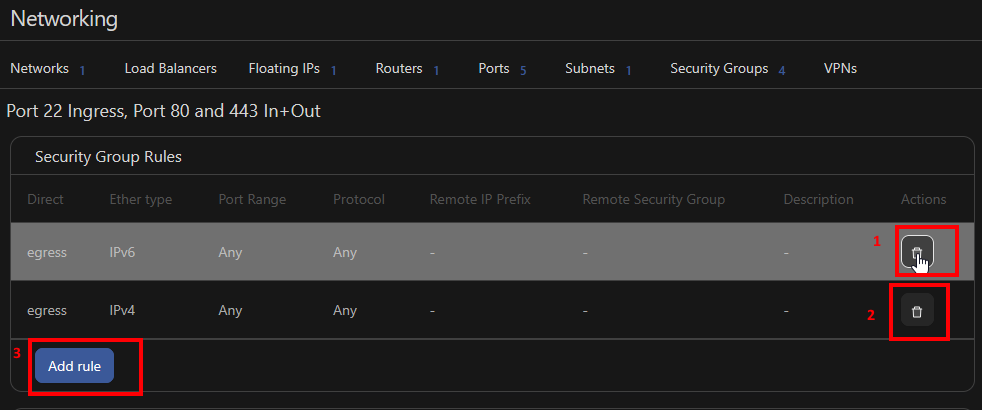
You'll notice there are two default rules for egress. Since we want to be very specific with our security groups, let's go ahead and delete these rules, then click "Add rule" to add our own.
Here's how we want to set up our port 22 rule:
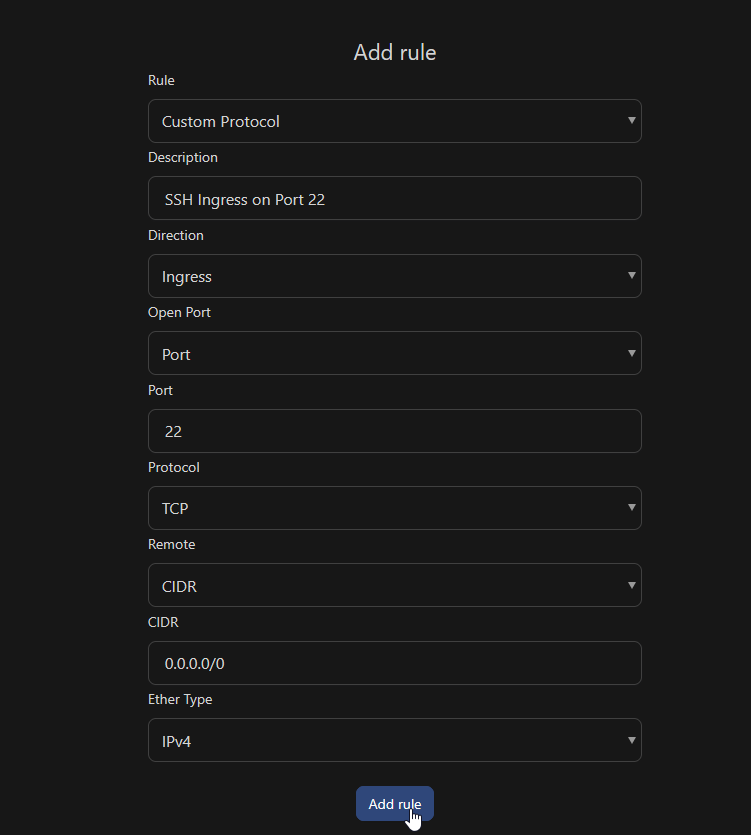
We've set Custom Protocol (to later select TCP), given it a description, allowed Ingress traffic, select a specific Port, specified that port as 22, select TCP as the protocol, allowed all IP addresses to contact it using the 0.0.0.0/0 subnet, and set the traffic type as IPv4. Click "Add rule" when you're done.
Let's follow that same structure to add rules for Ingress and egress on ports 80 and 443, the most common internet access ports:
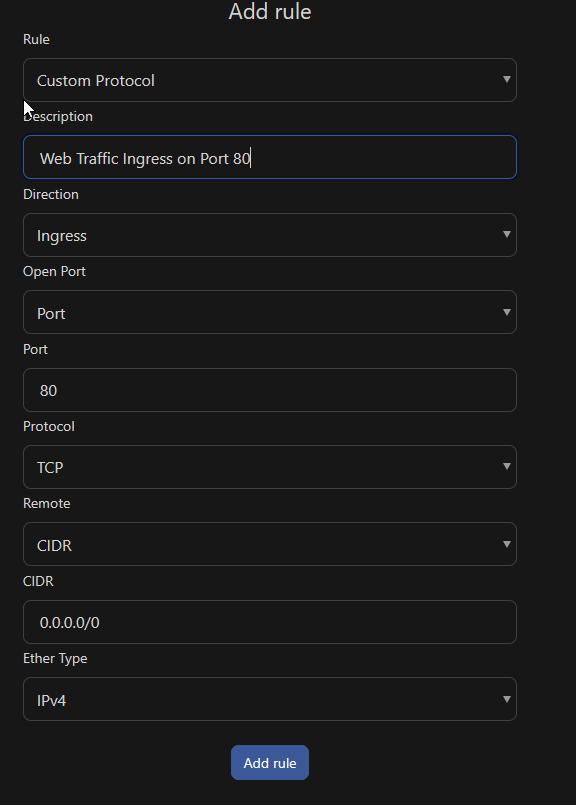
We'll do the same for Egress on 80, and Ingress and Egress on 443:
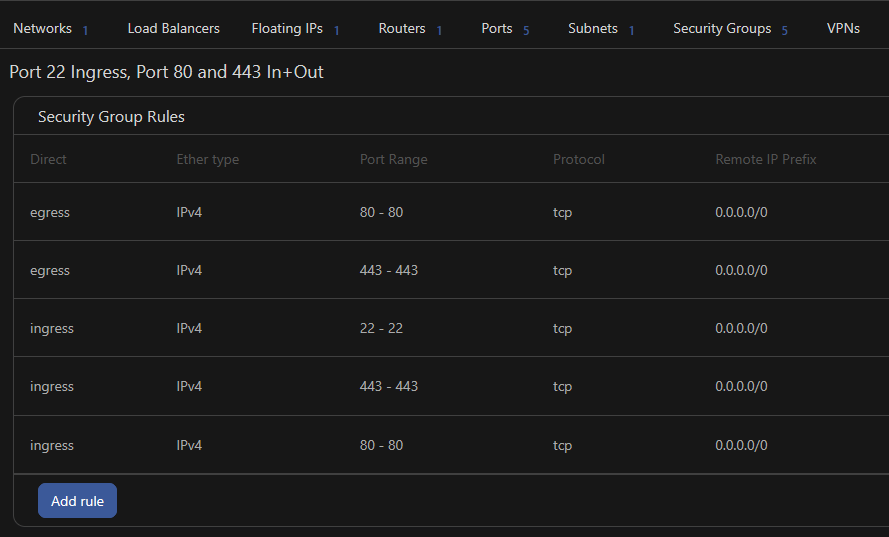
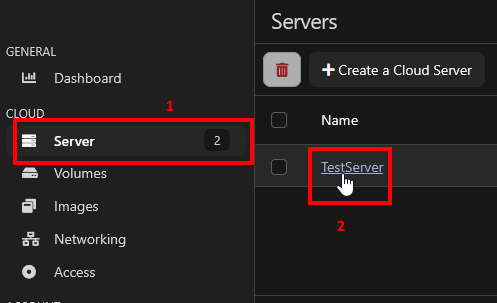
All that's left to be done is assign the security group. Go to "Server" in the sidebar and select our VM.
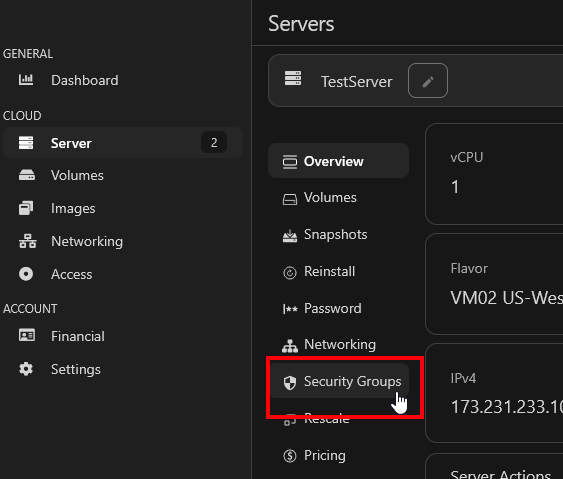
Then click on "Security Groups"
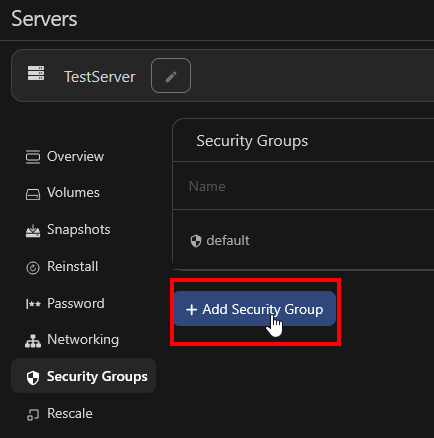
Next, "Add Security Group"
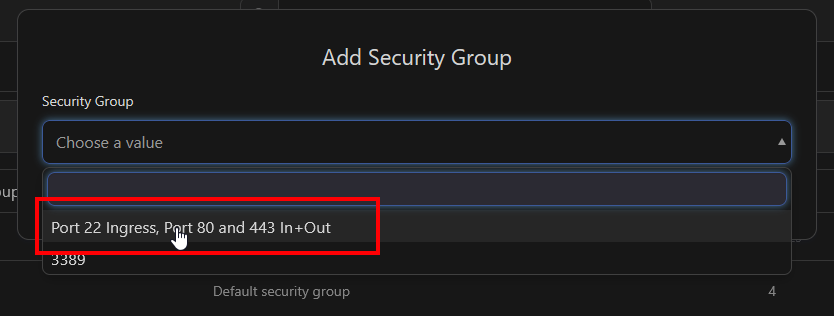
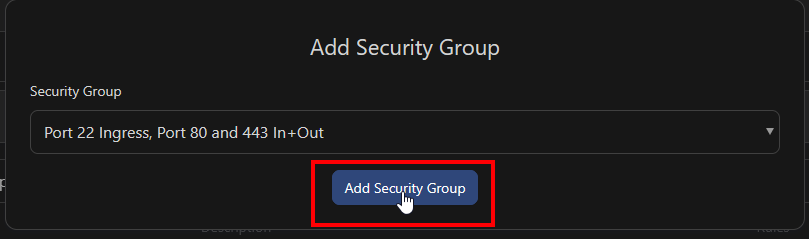
Select our created "Port 22 Ingress, Port 80 and 443 In+Out" security group and click "Add Security Group"
Done! You've created and attached a security group.